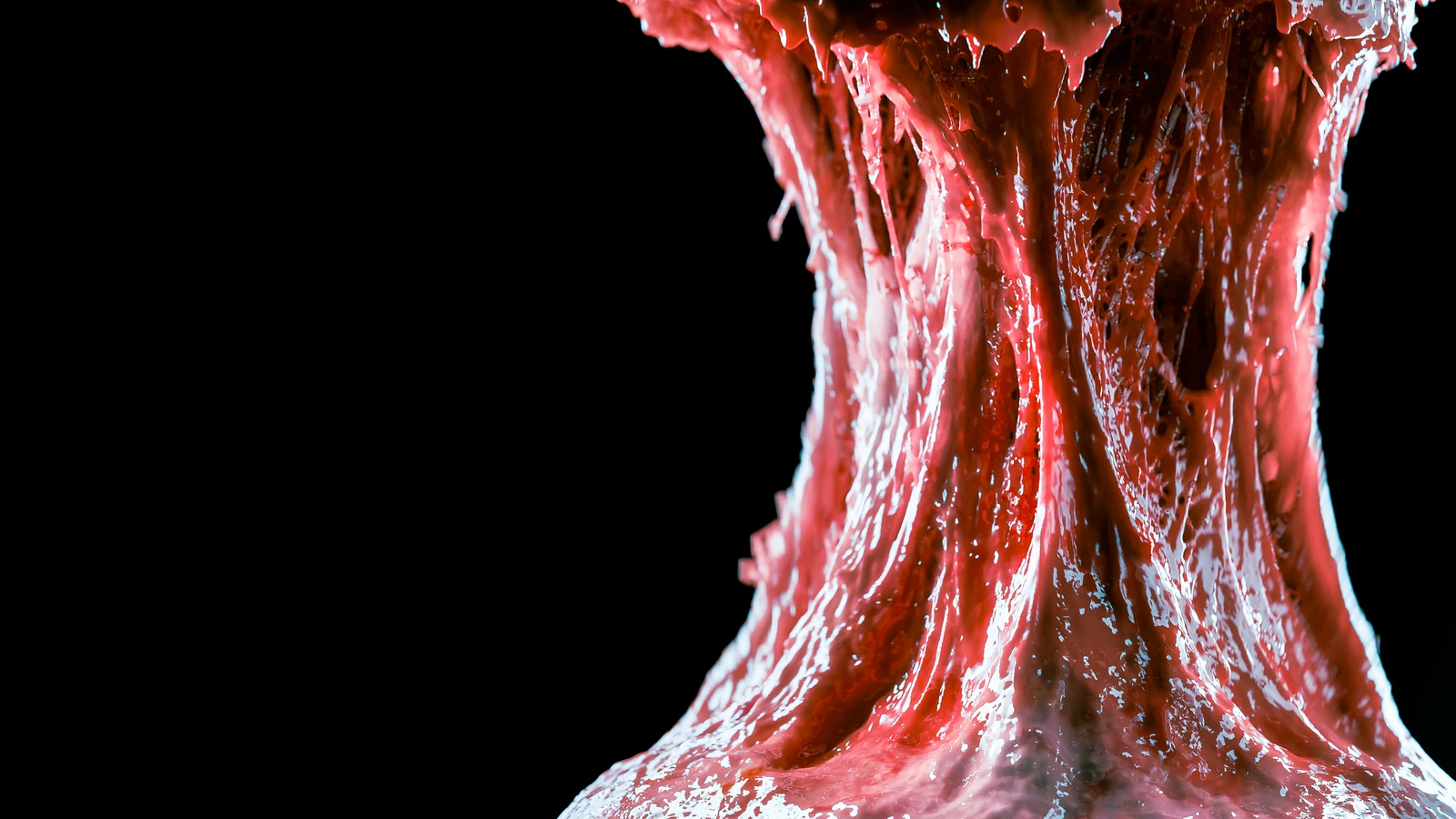
Carnage Grains brings GPU-powered grain simulation to Blender. If that makes you think of sand, that’s only part of the picture.
Carnage handles familiar granular effects like sand, mud and snow, but it’s just as at home with something more unsettling. For gore and creature effects, use glued grains to build materials that stretch and tear, then mesh and texture the result for flesh, gel and other disturbing creations.
Carnage’s XPBD solver handles loose grains as well as materials held together by attraction or glue. Use animated objects to stretch and move the material, choose when grains start to simulate, and render them as individual grains or a textured surface.
Fill a mesh with grains and choose their size and arrangement. Vary their sizes, add randomness to their starting positions, or switch between cubic and close packing. Smaller grains capture finer detail; larger grains let you try out the motion with fewer particles.
02 / SHAPE THE MATERIAL
Choose how it holds together.
Make grains clump together or connect them with glue. Control how the material stretches, breaks and recovers its shape.
Shape and deformation
Plasticity
Control what happens after a material is bent, stretched or pressed. Let it spring back, recover slowly or keep the new shape. Shape Retention sets how much deformation remains, with separate controls for how quickly it sets and recovers.
Material cohesion
Glue Constraints
Glue connects neighboring grains so they move together. Control how soft the connections are, how much they bounce and how far they stretch before breaking. Use masks to make some areas hold together more strongly than others.
Clumping
Attraction
Pull nearby grains together to form clumps. Adjust the strength and distance of the attraction, or use a mask to make it stronger in some areas than others.
03 / DIRECT THE INTERACTION
Give the motion a direction.
Attach grains to animated objects, add colliders and adjust friction to control how the material moves through your scene.
Surface attachment
Attach
Attach grains to an animated object to lift, stretch or pull the material apart. Adjust how firmly they follow the object and how far they can pull away before the attachment breaks. Masks let you vary this across the material.
Sliding and settling
Friction
Control how easily grains slide against each other and other surfaces. Higher friction helps them form steeper piles. Mass Shock can help piles hold their height instead of gradually settling.
Contact and collision
Colliders
Use static or animated objects to push, catch and redirect grains. Use the mesh itself for detailed collisions, or a simpler shape such as a convex hull or box. Set friction, bounce and the gap between grains and each collider.
Collide with cached motion
SDF Colliders
Use a saved Carnage simulation as a moving collider for another simulation. SDF Colliders build a collision surface around the saved grains or points from a mesh. Preview the surface and adjust its detail before running the new simulation.
04 / CHOOSE WHEN MOTION BEGINS
Decide where it starts.
Let grains follow an animation, release selected areas or make the release spread through the material.
Follow an animation
Point Deform
Let grains follow an animated mesh, then choose when to release them into the simulation. They can carry the speed and direction of the animation into the release.
Choose when it moves
Activation
Choose which grains start moving and when. Use a moving sphere, the space inside an object or a mask to select them. Release a whole area at once or let the release spread over time.
Spread the activation
Infection
Start motion in one area and let it spread through the grains. Infection can expand outward from an emitter, pass from grain to grain, or use both methods together. Control how quickly it spreads through the material.
05 / POST-PROCESSING
Refine your simulation.
Remove unwanted grains and add finer detail to a saved simulation without running it again.
Refine the cache
Remove Grains
Clean up a saved simulation without running it again. Remove stray grains, use an object to cut away unwanted areas, or remove grains that move too fast or jump unexpectedly.
Add finer detail
Upres
Add more, smaller grains to a saved simulation for finer detail. Upres uses the original grains to guide their motion, so you can work on the simulation first and add detail afterwards without simulating it again.
06 / MESHING
Turn grains into a surface.
Create a surface with Carnage Meshing or Geometry Nodes, or render the grains individually. Use your source mesh’s UVs to texture the surface.
Build the surface
Carnage Meshing
Turn your grains into a surface. You can also mesh the connections between glued grains to create stretching strands. Adjust the detail and smoothing, then save the mesh animation for playback and rendering.
Build with Geometry Nodes
Geometry Nodes
Display your simulation as points, individual grains or a meshed surface. Carnage creates the Geometry Nodes setup for you, and you can edit it inside Blender.
Texture the result
UV Mapping
Transfer your source mesh’s UVs to the simulated surface so your textures follow the deformation. Carnage Meshing’s Reference Surface option uses the saved starting surface to map textures as the grains deform.
BEFORE YOU BUY
Check your setup.
An NVIDIA graphics card is required.
Carnage Grains uses NVIDIA CUDA to run its simulations. AMD, Intel and Apple graphics cards are not supported. The current package is for 64-bit Windows and requires Blender 5.1 or later.
New, and actively developing.
Carnage Grains is new and in active development, so you may run into bugs. If you do, please send me a message through Superhive with your Blender version, graphics card and a short description of the problem. A small example file helps me find the cause and work on a fix.
Max Miles
A FEW USEFUL DETAILS
Good to know.
What affects simulation performance?
Performance depends on your GPU, the number of grains and the simulation settings. Smaller grains capture more detail but need more GPU memory. Start with larger grains while working on the motion, then increase the detail when you’re happy with it.
Does Upres simulate everything again?
No. It creates finer grains from a saved simulation. It does not preserve the original glue bonds, masks, UV data or Recorded Motion.
CARNAGE GRAINS
US$49.99. Pay once.
Every future Carnage Grains update and upgrade is included at no extra charge.